
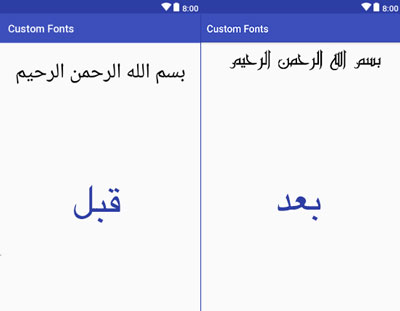
السلام عليكم، في هذه المقالة سوف أوضح لك كيفية إضافة خط لتخصيص نص داخل تطبيق الاندرويد.
أولا قم بإنشاء تطبيق جديد.
بعدها قم بإنشاء مجلد (assets) وبداخله إنشاء مجلد (fonts)، تم ضع ملف الخط الذي قمت بتنزيله مسبقا من الإنترنت، بداخل هذا المجلد.
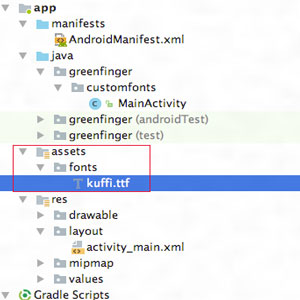
الخطوة الأولى: وضع الكود التالي مكان الموجود داخل ملف (activity_main.xml)
<?xml version="1.0" encoding="utf-8"?>
<android.support.constraint.ConstraintLayout xmlns:android="http://schemas.android.com/apk/res/android"
    xmlns:app="http://schemas.android.com/apk/res-auto"
    xmlns:tools="http://schemas.android.com/tools"
    android:layout_width="match_parent"
    android:layout_height="match_parent"
    tools:context="greenfinger.customfonts.MainActivity">

    <TextView
        android:id="@+id/textView"
        android:layout_width="325dp"
        android:layout_height="wrap_content"
        android:layout_centerHorizontal="true"
        android:layout_centerVertical="true"
        android:text="بسم الله الرحمن الرحيم"
        android:textAlignment="center"
        android:textColor="@android:color/black"
        android:textSize="40sp"
        app:layout_constraintEnd_toEndOf="parent"
        app:layout_constraintStart_toStartOf="parent"
        tools:layout_editor_absoluteY="28dp" />

</android.support.constraint.ConstraintLayout>
- الخطوة الثانية: وضع الكود التالي مكان الموجود داخل ملف (MainActivity.java)
package greenfinger.customfonts;

import android.graphics.Typeface;
import android.support.v7.app.AppCompatActivity;
import android.os.Bundle;
import android.widget.TextView;

public class MainActivity extends AppCompatActivity {

    @Override
    protected void onCreate(Bundle savedInstanceState) {
        super.onCreate(savedInstanceState);
        setContentView(R.layout.activity_main);
        TextView textView = (TextView) findViewById(R.id.textView);
        Typeface font = Typeface.createFromAsset(getAssets(), "fonts/kuffi.ttf");
        textView.setTypeface(font);


    }
}
- الخطوة التالثة: وضع الكود التالي مكان الموجود داخل ملف (AndroidManifest.xml)
<?xml version="1.0" encoding="utf-8"?>
<manifest xmlns:android="http://schemas.android.com/apk/res/android"
    package="greenfinger.customfonts">


    <application
        android:allowBackup="true"
        android:icon="@mipmap/ic_launcher"
        android:label="@string/app_name"
        android:theme="@style/AppTheme" >

        <activity
            android:name=".MainActivity"
            android:label="@string/app_name" >

            <intent-filter>
                <action android:name="android.intent.action.MAIN" />
                <category android:name="android.intent.category.LAUNCHER" />
            </intent-filter>

        </activity>

    </application>

</manifest>
- الخطوة الرابعة: وضع الكود التالي مكان الموجود داخل ملف (build.gradle)
apply plugin: 'com.android.application'

android {
    compileSdkVersion 26
    defaultConfig {
        applicationId "greenfinger.customfonts"
        minSdkVersion 15
        targetSdkVersion 26
        versionCode 1
        versionName "1.0"
        testInstrumentationRunner "android.support.test.runner.AndroidJUnitRunner"
    }
    buildTypes {
        release {
            minifyEnabled false
            proguardFiles getDefaultProguardFile('proguard-android.txt'), 'proguard-rules.pro'
        }
    }
}

dependencies {
    implementation fileTree(dir: 'libs', include: ['*.jar'])
    implementation 'com.android.support:appcompat-v7:26.0.0'
    implementation 'com.android.support.constraint:constraint-layout:1.1.3'
    testImplementation 'junit:junit:4.12'
    androidTestImplementation 'com.android.support.test:runner:1.0.2'
    androidTestImplementation 'com.android.support.test.espresso:espresso-core:3.0.2'
}
لا تنسى تغيير الباكيدج، ضع الخاص بك
package="greenfinger.customfonts">
الآن قم بتجربة التطبيق
بالتوفيق